A form QR code lets people open your online form by scanning it with their phone. With ShForm, you can generate a QR code directly from your form, then download, share, or print it to collect submissions.
Use your QR code on posters, flyers, counters, invitations, or presentation slides. People scan the code, complete your form, and tap Submit—without typing a website address.
This guide explains how to create a form QR code on desktop and in the ShForm iOS and Android apps.
Create a Form QR Code on Desktop
You can access your form’s QR code from the form list or immediately after saving or publishing your form.
Option 1: Download the QR Code from Your Form List
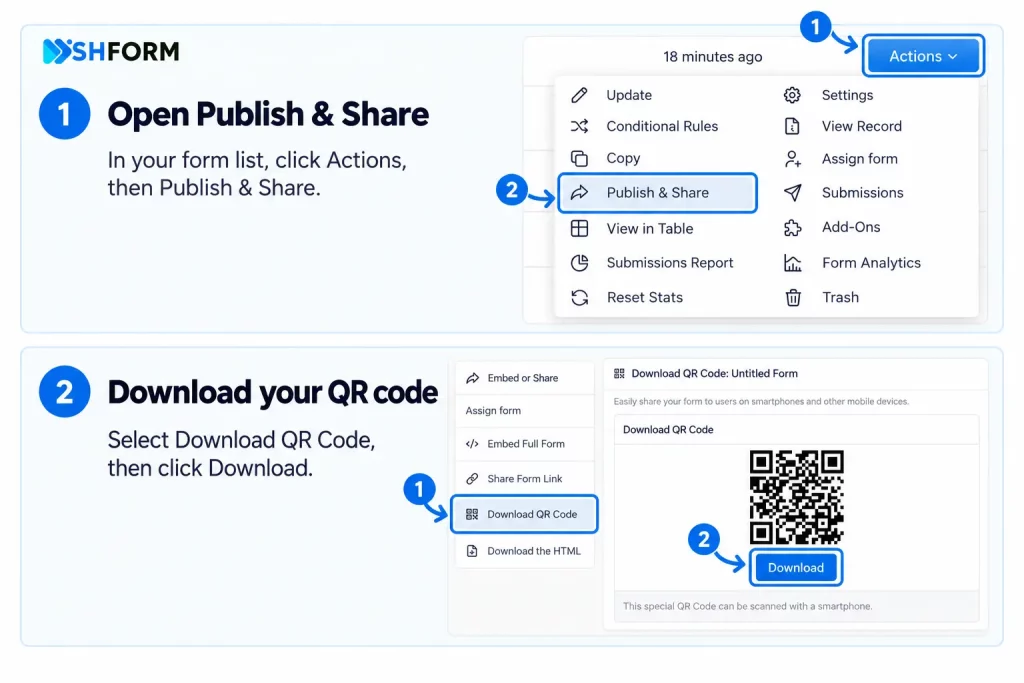
- Log in to your ShForm account.
- Go to your Form List.
- Find the form you want to share and click its Action button.
- Select Publish and Share.
- Click Download QR Code.
Your downloaded QR code is ready to add to printed materials or share digitally.
Quick path: Form List → Action → Publish and Share → Download QR Code
Option 2: Access the QR Code After Saving or Publishing
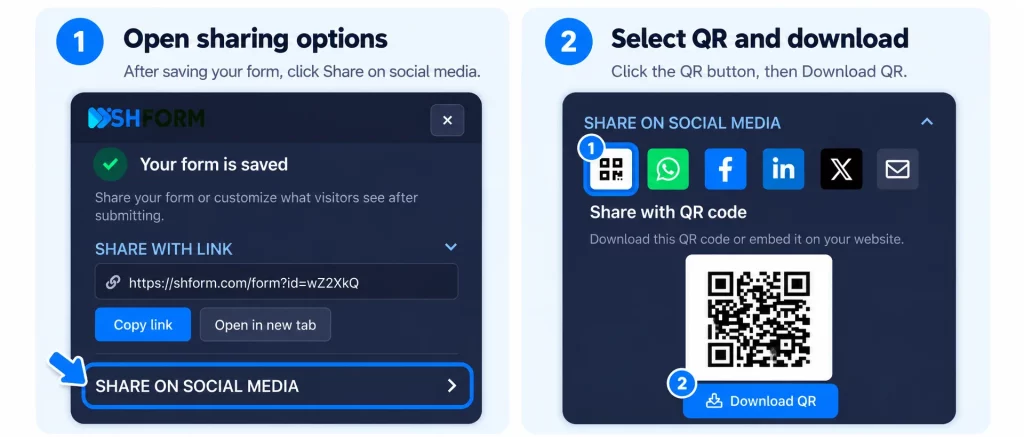
- Create a new form or edit an existing form.
- Save or publish your form.
- In the success sidebar, select Share on social media.
- Click the QR button to access your form’s QR code.
This option is convenient when you want to share a form immediately after making changes.
Create and Share a Form QR Code on iOS or Android
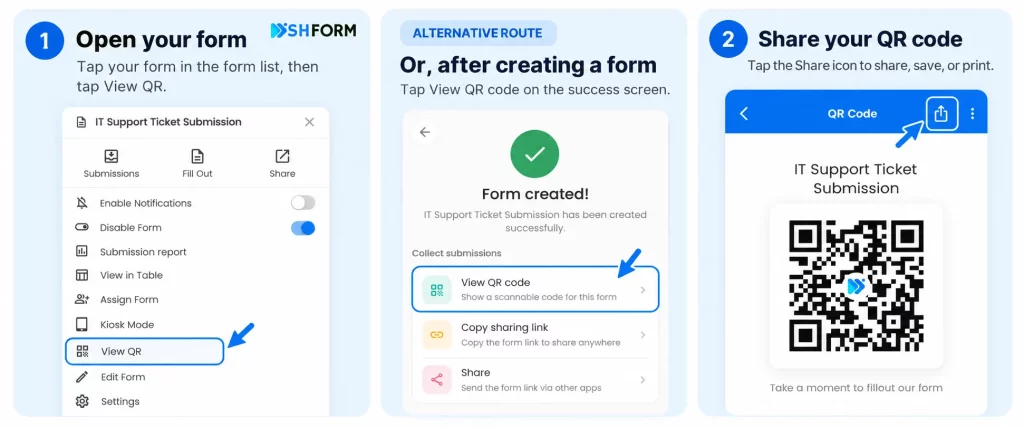
You can also access your form’s QR code directly in the ShForm mobile app.
- Open the ShForm app on your iPhone or Android device.
- Go to your Form List.
- Tap the form you want to share.
- Select View QR.
- Your form’s QR code will appear.
- Tap the Share icon at the top to access sharing, saving, or printing options available on your device.
Quick path: Form List → Tap Your Form → View QR → Share Icon
You can display the QR code on your phone for someone to scan or share it for use on another device.
How People Submit Your Form Using a QR Code
Once you share your QR code, respondents can:
- Open their phone’s camera or a QR scanner.
- Point it at the QR code.
- Tap the link that appears.
- Complete the form in their browser.
- Tap Submit to send their response.
Respondents do not need to install the ShForm app to open the form in their browser.
Note: Scanning the QR code opens your form. The person must still complete and submit it for a response to be recorded. An internet connection is required to load and submit the online form.
Where to Use Your Form QR Code
A QR code connects printed materials and in-person interactions to your online form.
| Use case | Where to display the QR code |
|---|---|
| Event registration | Posters, invitations, and venue entrances |
| Customer feedback | Receipts, packaging, and checkout counters |
| School inquiries | Admission notices, brochures, and reception desks |
| Surveys | Presentation slides, handouts, and noticeboards |
| Lead collection | Business cards, exhibition stands, and product brochures |
| Team registration | Sports posters and community announcements |
Add a short instruction beside the code, such as “Scan to register” or “Scan to share your feedback,” so people know what to expect.
Tips for Sharing and Printing Your Form QR Code
Before distributing your QR code:
- Test the downloaded version. Scan it with another phone and submit a test response.
- Keep it clear. Avoid stretching, blurring, or cropping the QR image.
- Leave space around it. Keep text and graphics away from the code’s outer border.
- Check the printed size. Test a printout from the distance people will actually scan it.
- Confirm the form is available. Open it as a respondent and check that it accepts submissions.
- Keep the form focused. Ask only for the information you need, especially when people will complete it on their phones.
For printed materials, consider including a form link below the code as an alternative way to access it.
Can You Create a QR Code for Google Forms?
Yes. You can publish a Google Form, copy its responder link, and turn that link into a QR code. One option is to open the responder link in desktop Chrome and use Chrome’s QR code sharing feature. Check the Google Form’s responder permissions before distributing the code.
If you are looking for a Google Forms alternative with built-in form QR sharing, ShForm provides QR access directly from its desktop sharing menu and its iOS and Android apps. You can retrieve your form’s QR code without copying the form link into a separate QR generator.
Frequently Asked Questions
On desktop, go to Form List → Action → Publish and Share → Download QR Code. In the ShForm iOS or Android app, tap your form and select View QR.
Yes. On desktop, download the QR code and add it to your printed materials. In the mobile app, open View QR and tap the Share icon at the top to access the saving or printing options available on your device.
No. Respondents can scan the QR code with their phone’s camera or a QR scanner and complete the form in their browser. They do not need to install the ShForm app.
No. Scanning the QR code opens your form. A response is recorded only after the person completes the form and submits it successfully. An internet connection is required to load and submit the form.
Yes. You can share or print the same QR code for multiple respondents. Each person opens the linked form and submits their own response, subject to your form settings and account limits.
If the QR code does not scan, use a clearer image, improve the lighting, or increase the printed size. Avoid cropping the code and leave clear space around it. If the code opens a link but the form cannot be completed, check your internet connection and confirm that the form is available and accepting submissions.
No. Form QR codes are available on all ShForm plans, including the Free plan.